Drawing tablets on exams - Kunnskapsbasen
Drawing tablets on exams
This article contains detailed information for students and lecturers about drawing tablets on school exams.
In this video, you’ll see how to use a drawing tablet during a school exam.
The video is in Norwegian, however you can change subtitles to English by clicking on the settings button (gear icon) at the bottom right. We recommend watching the video in full screen for the best viewing experience.
Norsk versjon: Tegnebrett på eksamen
For students
On school exams, it is possible to use a drawing tablet, if your lecturer has chosen it.
This page gives you a description of the drawing tablet used in school exams, and guidance on how to use the tablet.
Contact NTNU Hjelp if you have any questions that are not covered on this page and that your lecturer cannot answer.
The drawing tablet
The tablet used in school exams is Wacom One. It is easy to use and has no buttons (except On/Off). You use the pen that comes with it to draw and write. The tablet is not a touch screen, so your hand cannot interfere while resting it on the tablet during drawing.
It acts as an additional screen, and the pen as a mouse. The normal mouse will also work on the tablet. The two screens – the PC screen and the tablet – are connected, and you can drag program windows from the PC screen down/over to the tablet.
The tablets are connected to NTNU's examination PCs and cannot be used with the private PCs. You cannot use your own tablet in school exams.
The software
The standard program used for drawing is Microsoft OneNote. We use a OneNote template in order to make the usage as simple as possible. In OneNote you can choose bewteen blank pages, lined pages and pages with gridlines.
In the Draw menu you will find various drawing tools, pen, eraser, and ruler, for example. You can also experiment with the "Ink to Text" function if you have written text by hand.
For more information, see the drawing tablet manual further down on this page.
Submission
The file is uploaded in the test in Inspera, and it must be a PDF file. Generally, there will be a file upload for each task that involves drawing tablet. In some cases, the lecturer chooses to merge several drawing tasks into one upload, and you then have these in the same file. You can read in the drawing tablet manual how to handle the two different cases in your exam.
It is up to you whether you want to upload continuously during the exam, or to do it at the end of the exam. Note that you have 15 minutes extra time for uploading your files. We do recommend uploading your files continuously during the exam.
When submitting, it is important that you check that you have uploaded the correct submission. It is your responsibility to ensure that the correct submission has been uploaded. You can check this by clicking the download button right afterward
Drawing tablet manual
Click here to download the manual for using the drawing tablet. It guides you on how to use the tablet together with OneNote, saving your file(s) and uploading them in Inspera.
The manual will be available on the exam too, but we recommend you familiarize yourself with it in advance.
Presentation of the tablet
Students have the opportunity to visit the exam rooms to familiarize themselves with the use of drawing tablets in school exams.
Academic year 2026/2027
Gjøvik: -
Trondheim: October 29 and 30, 10:00-14:00
Ålesund: Announced soon
The presentation is part of Open Day (where new students are introduced to the school exam at NTNU). If you are not a new student, you can come and try out the drawing tablets.
For lecturers
Students can use drawing tablets on school exams, if you register this as an IT need. These can largely replace paper hand drawings and have clear advantages.
This page gives you a description of drawing tablets for school exams and guidance on how you as a lecturer should approach the usage of them on exam.
Please also read the page for students to get more information and an understanding of the student perspective on the use of drawing tablets.
Contact NTNU Help if you have any questions that this page does not cover.
How to register drawing tablets for your course
You order drawing tablets as an IT requirement for school exams via an examination-responsible study consultant at your department. Please note the following points.
Deadlines for registering for IT requirements
Drawing tablets for school exams must – like other IT requirements – be ordered the semester before the semester in which they are to be used. The IT requirements in a course are automatically provided on future semesters, and you therefore do not need to re-order each time.
Drawing tablets for fall semesters: April 30
Drawing tablets for spring semesters: September 30
The stock of drawing tablets
NTNU Gjøvik: 124
NTNU Trondheim: 563
NTNU Ålesund: 126
Courses with more students than there are drawing tablets must unfortunately be rejected.
The advantages of drawing tablets over paper hand drawings
When students use drawing tablets instead of making paper hand drawings, they get advantages such as:
- Correcting their work, and thus not starting over (paper hand drawing must be made with pen)
- Possibility to multiply and reuse drawings etc.
- Drawing on an element that the lecturer has made available in the test, for example a coordinate system, a map, a drawing, etc. (see description further down on this page)
- Training in using a modern tool, which they will certainly use in their working life afterwards
- For graders: immediate possibility for grading the assignment in its whole
The drawing tablet
The drawing tablet used in school exams is Wacom One. It is easy to use and has no buttons (except for On/Off). You use the pen that comes with it to draw and write. The tablet is not a touch screen, so your hand cannot interfere with your work when you rest it on the tablet.
The tablet functions as an extra screen, and the pen as a mouse pointer. A regular mouse can also be used on the tablet. The two screens – the PC screen and the drawing tablet – are an extension of each other, and students drag program windows from the PC screen down/up onto the tablet.
The tablets are only connected to NTNU's desktop PCs and cannot be used with private computers. Students cannot use their own drawing tablet or tablet on school exams.
Software
The program used for drawing is Microsoft OneNote. We use a OneNote template in order to make the usage as simple as possible. In OneNote you can choose bewteen blank pages, lined pages and pages with gridlines.
In the Draw menu you will find various drawing tools, pen, eraser, and ruler, for example. You can also experiment with the "Ink to Text" function if you have written text by hand.
For more information, see the drawing tablet manual further down on this page.
Design of the question set
Use the File Upload question type when creating the question set in Inspera Assessment. This is how students can import their work in OneNote into their assignment.
If there is more than one drawing task, choose one of the following formats:
- For every assignment where tablet is used, a file upload is made. That is, one assignment per file.
Advantages: A logical connection, where a drawing tablet assignment is placed where it belongs in relation to the overall assignment. During the grading, you will also see the tablet assignments where they belong chronologically.
Disadvantages: With many tablet assignments (from about six and up), students can in few cases make mistakes when uploading.
- All drawing tablet assignments are made in one file that is uploaded at the last drawing task, or at the end of the question set.
Advantage: The student only must handle one file.
Disadvantages: You, as grader, will not see the tablet assignments where they belong. This is particularly problematic if an assignment topic runs over several tasks/questions in a row.
Example: If students are to write a text and then use the tablet, then you must click forward to the drawings and then click back again. This is in opposition to tablet assignments being paired with the writing assignment.
- A few drawing tablet assignments are merged in a smaller number of files (this is something in between Design 1 and 2).
Advantage: Students handle slightly fewer files
Disadvantage: More or less the same as Design 2
For up to about five drawing assignments, it is recommended to create a file upload for each assignment (Design 1). For more than five, one of the other two designs can be considered. Often, however, Design 1 will still be a good choice.
Students are guided in the drawing tablet manual to save their drawings as PDF files, which ensures that the drawing tablet submissions are displayed directly in Inspera for you as a grader. You must ensure that only PDF files can be submitted by selecting them as the only allowed file type.
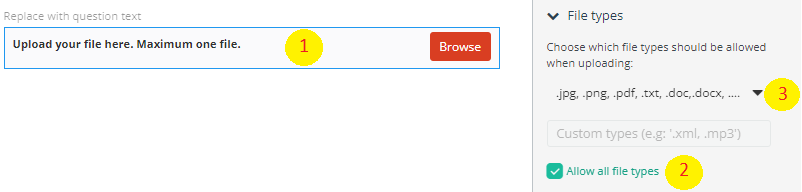
Click on the bar (1), remove the marking (2) and choose .pdf (3)
If students are to write text – or something else – and also draw, then add a File Upload right after the writing task, where they should write. Please explain in the writing task that they upload the drawing assignment when they continue. Note, it is possible for students to write smaller texts in OneNote as well.
Drawing on a predefined image
Students have the option to draw on a predefined image that you make available in Inspera. This could, for example, be an image, a coordinate system, or a map. Upload the image to the desired location in the question set. Students can then copy and paste the image into OneNote in a simple and standard way.
If you want to enable this, click the image icon within the question in Inspera where you want the image to appear.
Drawing tablets and paper hand drawings
It is not possible to use both a drawing tablet and paper handdrawings during written school exams at NTNU.
However, candidates may request scratch paper during exams with a drawing tablet, but please note that these cannot be submitted for grading.
Cover page info about drawing tablets
Insert this on the front page(s) under the point “Hand drawings” or “No hand drawings”:
Tegnebrett: I oppgave [X, Y, Z] er det lagt opp til å besvare på tegnebrett. Andre oppgaver skal besvares direkte i Inspera.
Teiknebrett: I oppgåve [X, Y, Z] er det lagt opp til å svare på teiknebrett. Andre oppgåver skal svarast på direkte i Inspera.
Drawing tablet: For question [X, Y, Z] you are meant to answer on drawing tablet. Other questions must be answered directly in Inspera.
Make sure to download the front page template again every semester: Cover page template for examinations
Drawing tablet manual
On the exam day, the manual must be available, and therefore you are asked to attach it as a resource in the question set. You do this in the bottom right corner, when you are in overview mode in the question set: 
It recommended to put the user manual on Canvas, so that the students can glance at it before the exam.
Here is the drawing tablet manual.
Testing the tablet - for you and for the students
Each academic year, students have the opportunity to visit the exam venues to familiarize themselves with the use of drawing tablets during school exams. See the dates further down the page.
It is also possible to arrange additional drawing tablet exercises beyond this. These sessions enable academic activity within the subject throughout the semester, with drawing tablets included. It is a prerequisite that you prepare the assignment set that the exercise will be based on.
You are welcome to get in touch via NTNU Help if you wish to visit the exam venues on your own to see and try the tablets. If there is interest from groups of lecturers – or an entire department – the Education division can visit the campus to provide a demonstration.
Presentation of the tablet
Students have the opportunity to visit the exam rooms to familiarize themselves with the use of drawing tablets in school exams.
Academic year 2026/2027
Gjøvik: -
Trondheim: October 29 and 30, 10:00-14:00
Ålesund: Announced soon
The presentation is part of Open Day (where new students are introduced to the school exam at NTNU). If you are not a new student, you can come and try out the drawing tablets.